
Save changes and Sync
Save a small change in local history, then share that saved change with GitHub. Start with an open project and configured Git author details.
These steps use the documented Windows app baseline. Save Changes records a local revision. Sync gets shared updates and sends saved work to the current branch’s connection.
Save a local revision
Section titled “Save a local revision”For your first practice save, use a note file in an offline project copy.
If you change an ACD, generate a matching preview after Logix Designer finishes saving the file. Include the ACD and its preview in the same saved revision.
- Add a short line to the note file and save the file in its editor.
- Return to IOFabrik and click Home.
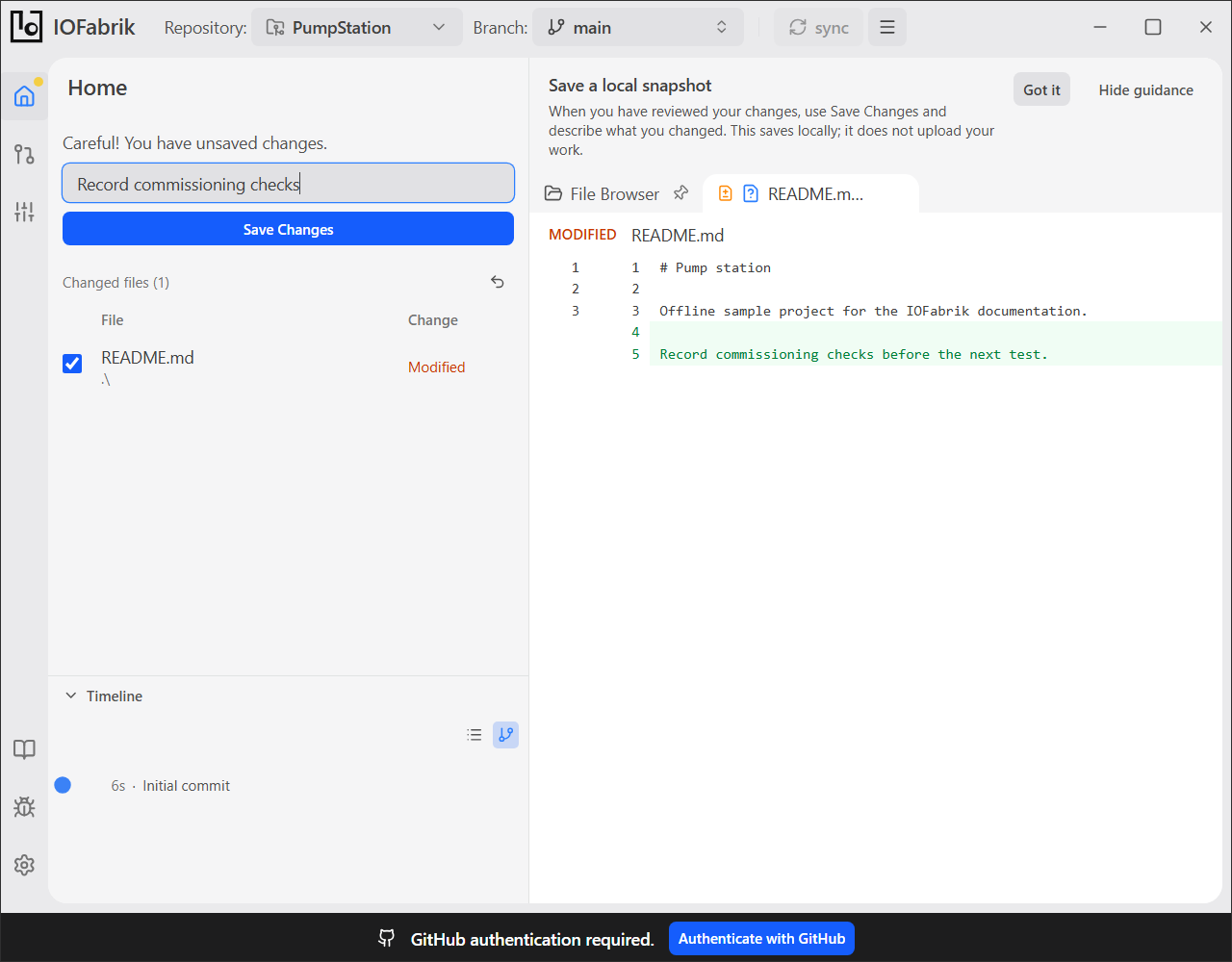
- Confirm that the changed file appears in the left sidebar.
- Click the file name to review its changes.
- Select the checkbox beside each file you want to include in this save.
- In Describe changes, enter a message such as
Record project setup notes. - Click Save Changes.
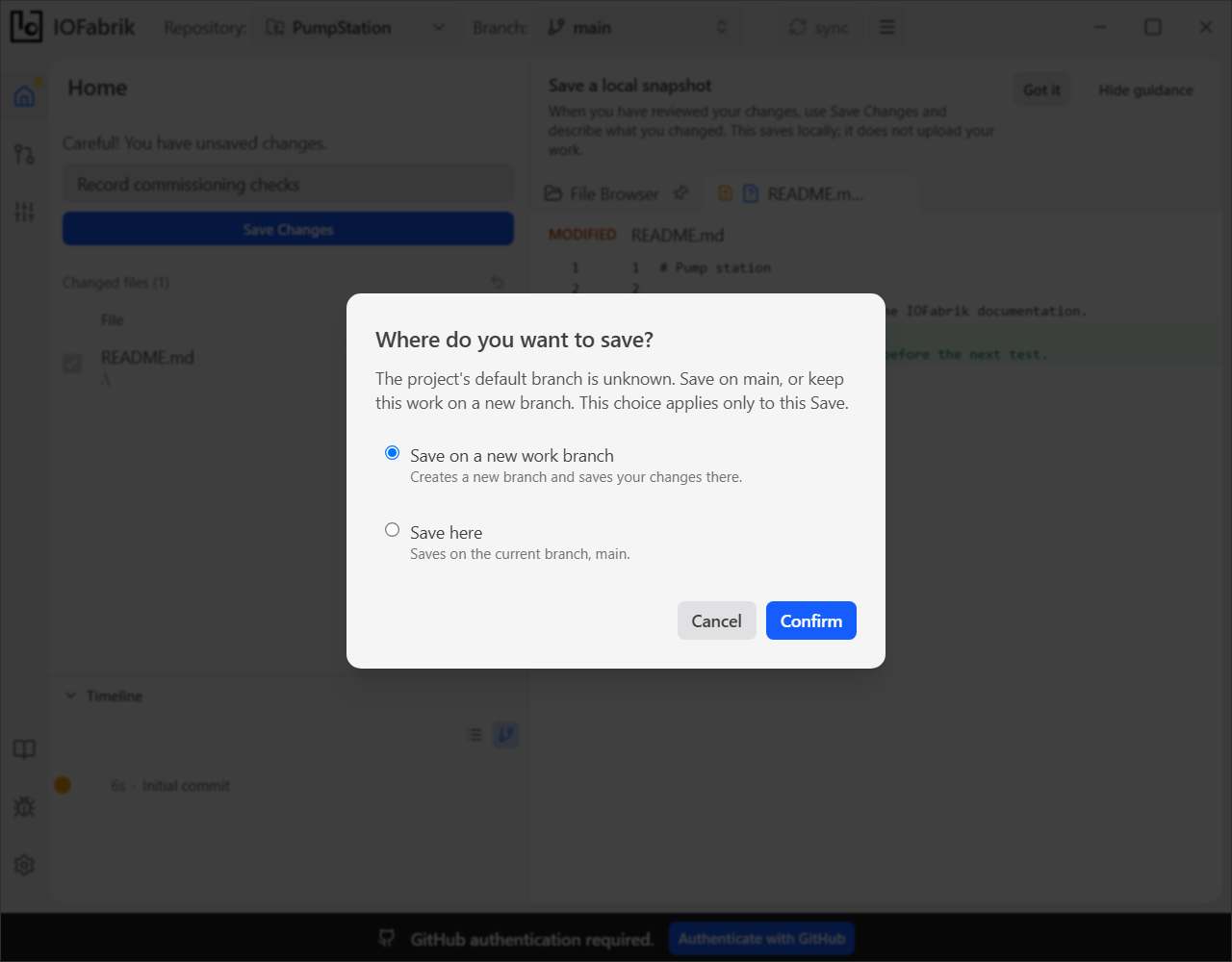
- If the app asks where to save, choose Branch and save or Save on a new work branch, then click Confirm.
- Wait for the save to finish.
The new revision appears in Timeline. Files included in the save leave the changed-file list. Files you did not select remain in the list.
If the app asks for your name and email, confirm your Git author details.
When the project’s default branch is unknown, the save dialog offers Save on a new work branch. The choice applies to this save.
Sync the saved revision
Section titled “Sync the saved revision”Before you share a local-only project, connect GitHub and publish the project.
- Confirm the project and branch in the top bar.
- Click Sync in the top bar.
- If Sync <branch>? appears, review the branch and click Continue Sync.
- Wait for Sync to finish.
- Confirm that the outgoing saved-change count clears for the connected branch.
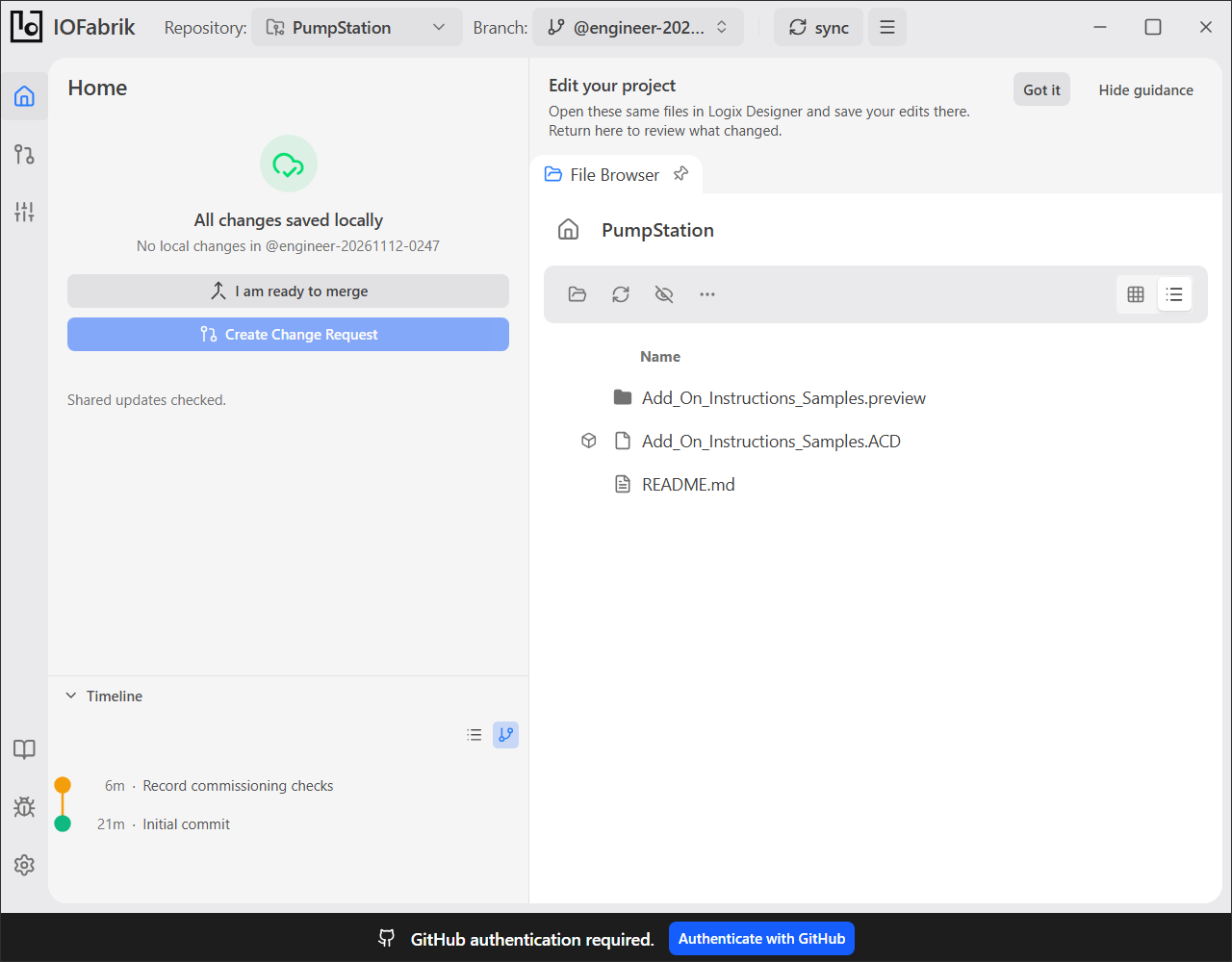
The counts describe saved revisions. Files still listed as changed have not been saved into those revisions.
If shared updates need a decision, IOFabrik opens Conflict Review. Follow Resolve merge conflicts before you continue. If the app shows Ready to finish Sync, click Continue Sync to share the updated result.
Sync shares the current branch. To request team review and merge work into the shared default branch, continue with the team review workflow.
If Sync fails, use Fix Sync or connection failures. Your local saved revision remains available while you resolve the connection problem.