
Install on Windows
Install IOFabrik for your Windows account, then open your first project.
Each screenshot opens at full size.
Documentation baseline
Section titled “Documentation baseline”These Windows guides describe application main commit 2458617124d68e5729adb39498b1636a156d4eb0, reviewed on 12 November 2026. This source is newer than the published v0.0.2 release. Screens and navigation in that release can differ. Check your installed version under Settings → General → Updates before you follow a procedure.
Screenshots and command checks use Windows 11 x64.
Development builds can share a version number. The displayed version alone does not identify this source baseline. If a documented control is missing, ask your installer provider for the matching build.
Install the complete application
Section titled “Install the complete application”- Obtain the full Windows x64 installer supplied for your IOFabrik build. Contact IOFabrik if you need access.
- Save your work and close IOFabrik before you run the installer.
- Open the installer and review the license terms.
- Follow the installation steps. The default application folder is
%LOCALAPPDATA%\IOFabrik\app. - Launch IOFabrik from the Start menu or desktop shortcut.
The full installer includes Git, Git LFS, and GitHub CLI. You do not need to install those tools separately for normal Windows use. The installer does not include Logix Designer, Logix Designer SDK, or the .NET 10 runtime needed for ACD preview generation.
If Windows blocks the installer, check the file’s source and digital signature before you continue. Keep Windows security protection enabled. If you cannot verify the download, contact your administrator or IOFabrik support.
Check the supporting tools
Section titled “Check the supporting tools”- On Getting started, click Check supporting tools.
- Wait for the check to finish.
- Confirm that Supporting tools shows Ready.
To reopen this guide, click Resources, the book icon in the left activity bar. Then click User onboarding.
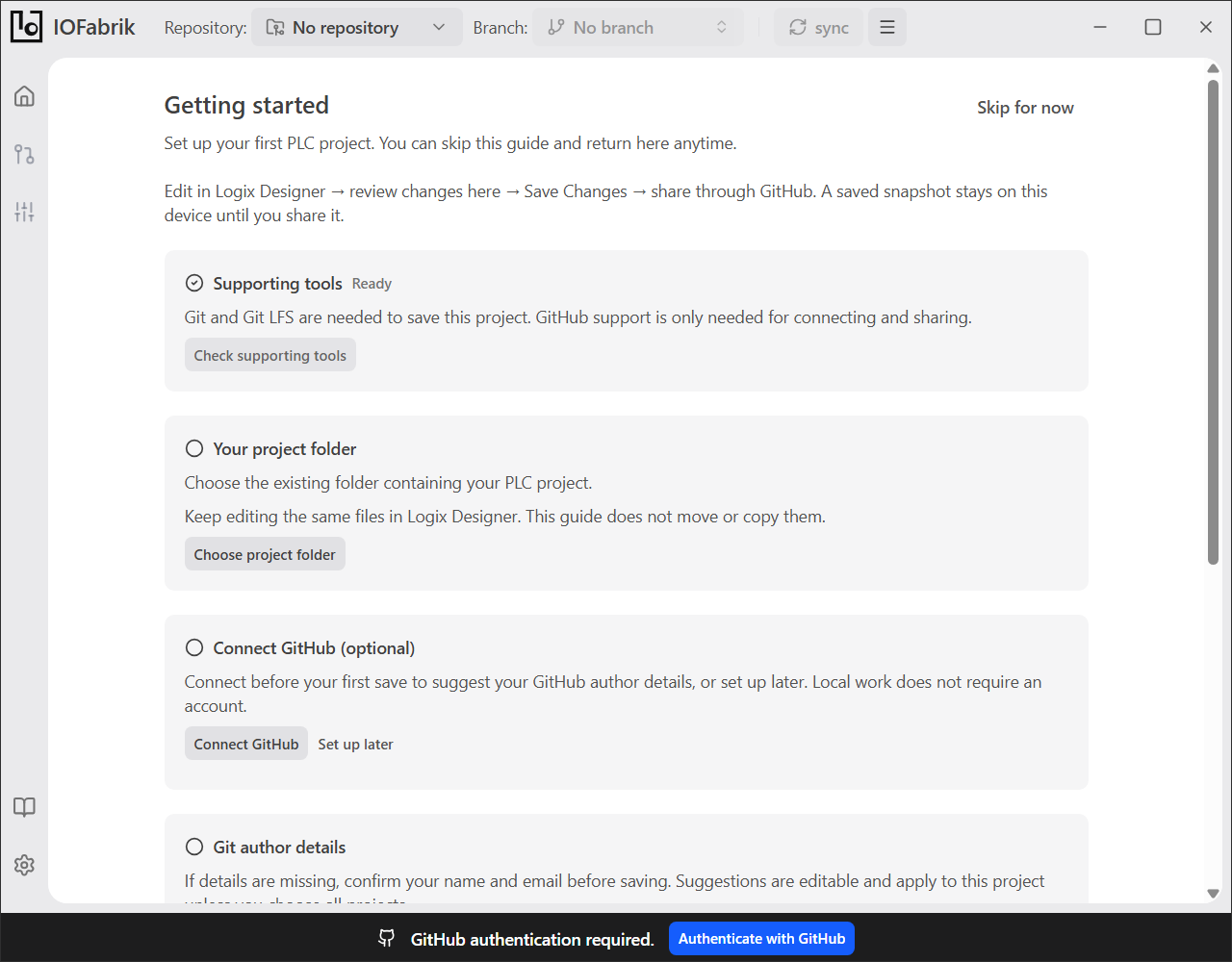
If a tool is missing or incomplete, run the full installer again. Check supporting tools prepares the installed tools. It does not download replacements. See Fix missing supporting tools if the check still fails.
Get updates
Section titled “Get updates”- Save your work in IOFabrik and Logix Designer.
- Open Settings → General.
- Under Updates, click Check for updates.
- Follow the update window’s prompts.
Production Windows x64 builds also check at startup and every six hours. A development build does not self-update. If your version cannot check for updates, use the full installer for the build you need.
The updater follows published stable releases. For a supplied build based on current main, use an explicitly supplied replacement to stay on that build’s documentation baseline.
Uninstall
Section titled “Uninstall”- Open Windows Settings → Apps → Installed apps.
- Find IOFabrik and choose Uninstall.
- Leave Remove user data (settings, logs, cache) unselected if you want to keep those files.
The uninstaller removes the application and its bundled supporting tools. Keep project folders outside the application installation folder.
Continue with Open or create a project.