
Fix an ACD preview
Use this guide when Preview cannot open an ACD, or Generate preview reports an error.
Opening an existing verified preview and generating a new preview have different requirements. A verified preview can be browsed without running the SDK. Generating one requires Windows x64, the app’s matching helper, .NET 10 x64, and Logix Designer SDK with the required Logix Designer version and activation.
Preview generation must be enabled in your build. If Generate preview is unavailable, confirm the build with your installer provider.
Read the preview result
Section titled “Read the preview result”- In Home, right-click the
.ACDfile and select Preview. - Read Cannot open ACD preview and its reason if the preview does not open.
- If a save or file copy is still active, wait for it to finish.
- Select Retry to read the current files again.
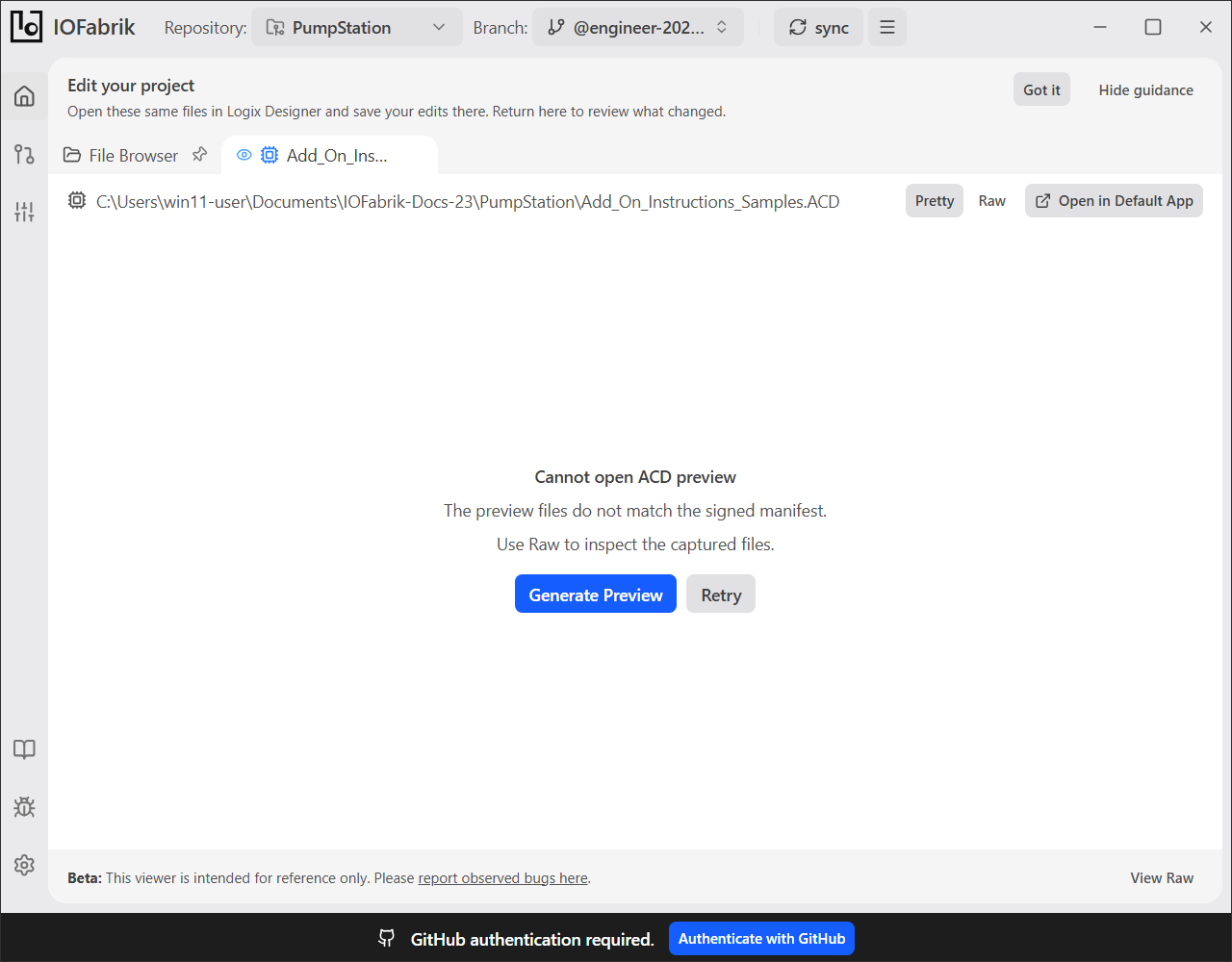
Use the reason to choose the next action:
- No generated preview was found for this ACD. Generate a preview for the selected file.
- The preview belongs to a different version of this ACD. Finish saving the ACD, then regenerate its preview.
- The preview has no trusted publisher signature. Regenerate with the matching complete app build. Do not edit the manifest to bypass verification.
- The preview files do not match the signed manifest. Regenerate the complete preview. Do not repair individual generated files by hand.
- The ACD or preview changed while it was being read. Wait for the write to finish, then select Retry.
- Too many ACD previews are open. Close another preview, then retry.
For an unsafe path, use a regular file inside the open project, without a link or junction. If the preview exceeds the displayed file-count or size limit, collect the message and project details. Retrying does not increase the supported limit.
Generate the preview again
Section titled “Generate the preview again”- Finish the save in Studio 5000.
- In IOFabrik, right-click the ACD and select Generate preview.
- Keep the project open while the notification reports progress.
- Wait for The preview is ready.
- Open Preview and select a routine in the Project Organizer.
Generation writes a sibling folder such as PumpStation.preview. Keep that complete folder with PumpStation.ACD when saving or sharing the generated preview. The folder can be hidden in Windows Explorer. Do not rename or edit its files independently.
Restore missing or changed preview tools
Section titled “Restore missing or changed preview tools”For The preview tools are missing or changed, close IOFabrik after active work finishes and reinstall the complete app build. Keep the matching helper folder beside the executable when using a provided extracted build.
A helper from another build can fail version or checksum verification. Copying only iofabrik.exe, or a single helper executable, does not restore the complete payload. See Restore missing supporting tools.
Check the SDK service and .NET runtime
Section titled “Check the SDK service and .NET runtime”Run these read-only commands in 64-bit PowerShell:
Get-Service -Name LdSdkService -ErrorAction SilentlyContinue |  Select-Object Name, DisplayName, Status
$dotnet = Join-Path $env:ProgramFiles 'dotnet\dotnet.exe'if (Test-Path -LiteralPath $dotnet -PathType Leaf) {  & $dotnet --list-runtimes} else {  Write-Output '.NET x64 was not found in its default location.'}
Expect LdSdkService with status Running. No service output means the named service was not found. Install or repair Logix Designer SDK through your organization’s approved software process.
The runtime list must include Microsoft.NETCore.App 10.x for the x64 helper. The SDK server has its own runtime requirements. A newer .NET version alone does not establish that the required runtime is installed.
If the SDK service is Stopped, finish any engineering work and ask an administrator to start Logix Designer SDK Service in Windows Services. Do not stop or restart a running service to clear a failed preview.
Match the error to its recovery
Section titled “Match the error to its recovery”For a missing Logix Designer version, install the version named in the error or select an ACD compatible with an installed version. Check the SDK installation and activation if export still fails.
For a changed source, wait until Studio 5000 finishes saving and retry. For a copy failure, close the editor normally after saving, check free disk space, and retry.
For a busy SDK, wait for the existing operation to finish. Closing the app window does not establish that SDK work has stopped. Avoid repeated generation attempts while another preview is active.
If the app reports an interrupted SDK operation that requires a Windows restart, save other work and restart Windows normally. Then reopen IOFabrik and retry once. Keep SDK locks, operation records, and retained recovery files intact. Do not kill the helper or SDK service, or delete app storage to bypass the refusal.
For a previous preview that needs recovery or a publication error that persists, stop before replacing folders. Preserve the ACD and its preview, then collect debug logs.
Verify the recovered preview
Section titled “Verify the recovered preview”Confirm that Preview opens and renders the expected routine. Use Raw to inspect captured generated files when needed. Check the changed-files list before Save Changes so you know which generated files will be included.
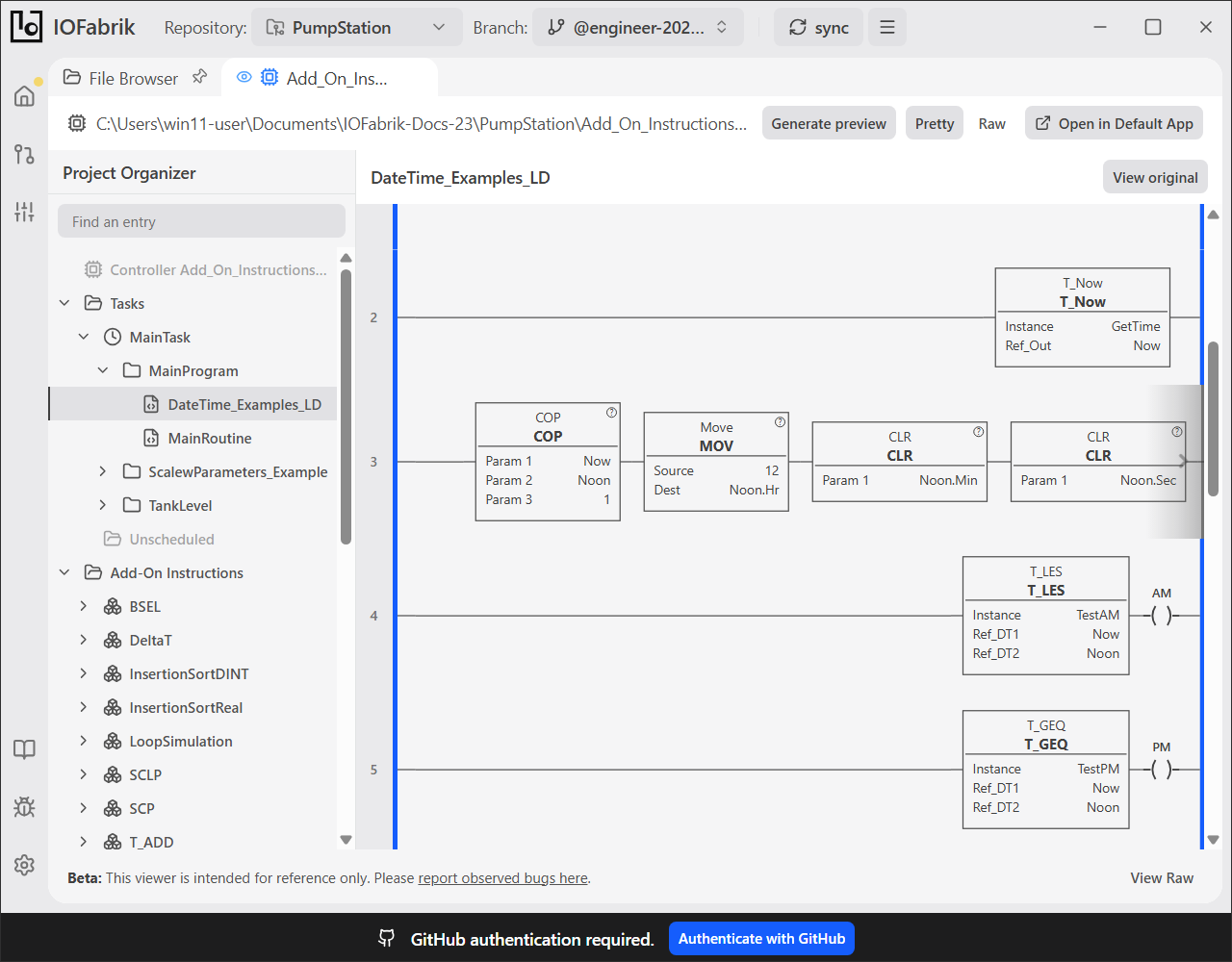
If generation still fails, include the exact message, app version, ACD’s Logix version, service status, and runtime output in your report. Share ACD files and SDK diagnostics only through an agreed private support channel.