
Collect debug logs
Use this guide when an error persists after the matching troubleshooting steps, or you need to report a reproducible failure.
Debug capture starts when you enable it. It does not recover events from before capture started. Logs can contain project paths, command output, remote addresses, and project details. Review the exported file before sharing it.
Capture the failure in IOFabrik
Section titled “Capture the failure in IOFabrik”- Open Settings → General.
- Record Current app version under Updates.
- Turn on Developer Mode.
- Open Debug Logs with the bug icon in the left activity bar.
- Turn on the logging switch at the top of Debug Logs.
- Return to the project and repeat the failing action once.
- Return to Debug Logs and select Export.
- Record the export path from the notification.
- Turn off debug logging after the export.
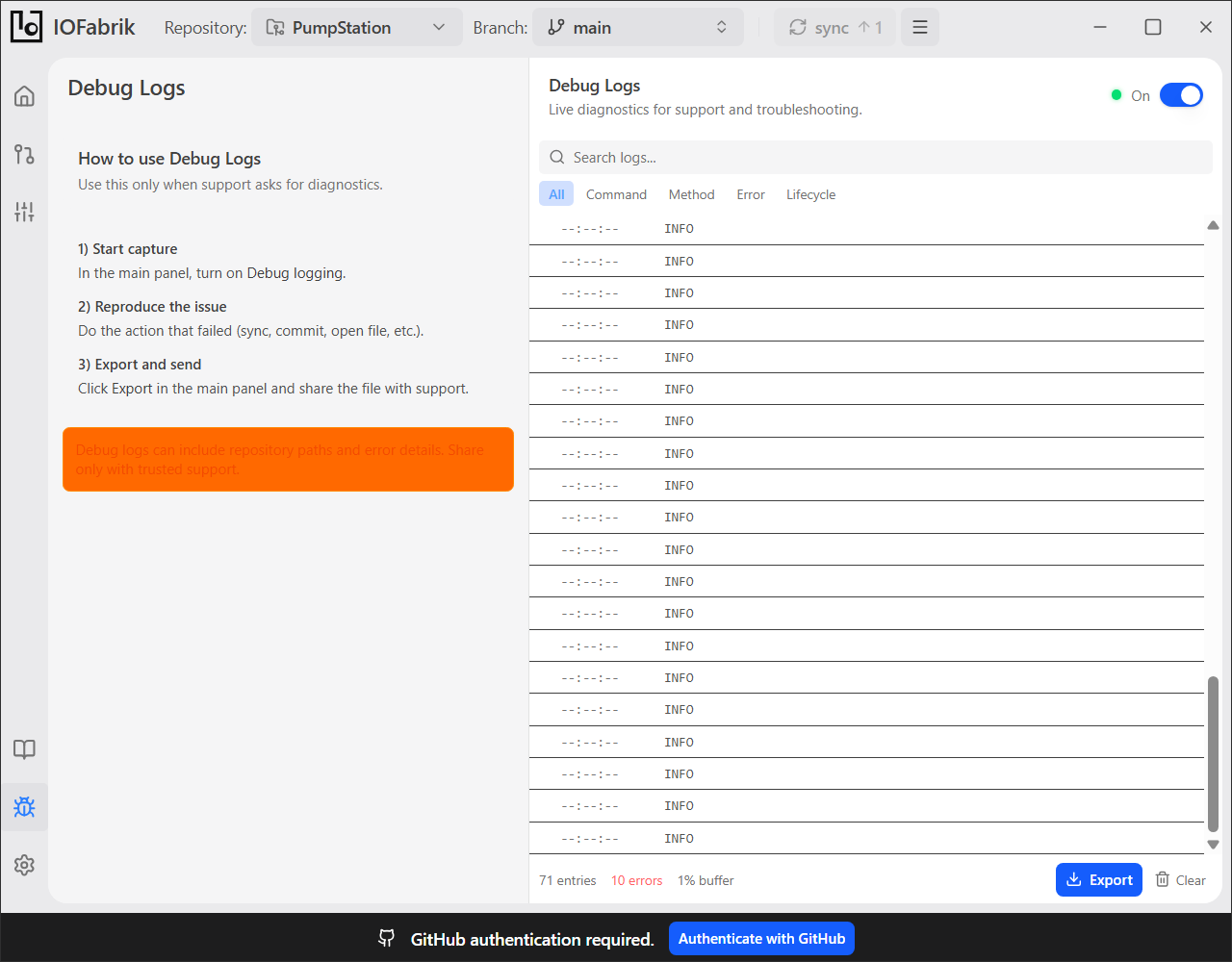
Expect new entries while logging is On. Export writes the captured entries to a JSON file. The search and category filters narrow the displayed entries. They do not limit the exported file.
Export before closing IOFabrik or selecting Clear. The live log buffer is held in memory. If the app crashes before export, reproduce with capture enabled when possible and record the crash time.
To return to ordinary use, turn off Developer Mode in Settings → General. If logging remains active, IOFabrik asks you to confirm stopping it.
Find and verify the exported file
Section titled “Find and verify the exported file”The default Windows export directory is %LOCALAPPDATA%\IOFabrik\logs. Run this PowerShell block after selecting Export:
$logDir = Join-Path $env:LOCALAPPDATA 'IOFabrik\logs'$log = Get-ChildItem -LiteralPath $logDir -Filter 'debug-*.json' -File | Sort-Object LastWriteTime -Descending | Select-Object -First 1if ($null -eq $log) { throw 'No exported debug log was found. Select Export in IOFabrik first.' }$log | Select-Object FullName, Length, LastWriteTime$decoded = Get-Content -LiteralPath $log.FullName -Raw | ConvertFrom-Json$entries = @($decoded)'Captured entries: ' + $entries.CountExpect a recent file named debug-YYYY-MM-DD-HHMMSS.json and a nonzero entry count after reproducing the issue. Compare its modification time with your capture time to avoid sending an older export.
If the count is zero, enable logging before repeating the failure, then export again. If export fails, keep Developer Mode enabled and open Settings → General. Under Data, check the Logs path and its permissions.
Prepare the report
Section titled “Prepare the report”Include these details with the reviewed export:
- The app version and Windows version.
- The action that failed, with the exact navigation steps.
- The expected result and the actual result.
- The complete error text and the time it occurred, including your time zone.
- Whether the problem occurs in one project or several projects.
- The selected branch and whether local work is saved or shared.
- For an ACD preview, the Logix Designer version, SDK service status, and .NET runtime output.
Record Windows information with these read-only commands:
Get-CimInstance Win32_OperatingSystem | Select-Object Caption, Version, BuildNumber, OSArchitectureGet-Date -Format oSend the report through Contact, or the private support channel agreed with your organization. Remove authentication tokens, credentials, and unrelated project content. Do not publish an ACD, complete repository, or raw SDK work directory as part of a public report.