
Open or create a project
Open the folder that contains your project files. IOFabrik tracks files in that folder. Keep editing those same files in Logix Designer.
Use the documented Windows app baseline. Start with an offline project copy that you can use for setup.
Set up your first local project
Section titled “Set up your first local project”- Open Getting started. To reopen the checklist, click Resources → User onboarding.
- Under Your project folder, click Choose project folder.
- Select the folder that contains your project.
- Confirm that the checklist shows the intended folder path.
- Under First saved snapshot, click Set up project if the folder is not tracked yet.
- Review the Project File Path and .gitignore Template in the setup form.
- Click Create Project.
- If the app requests your Git author details, enter your name and email, then click Save and continue.
- Wait for creation to finish, then click Continue to project.
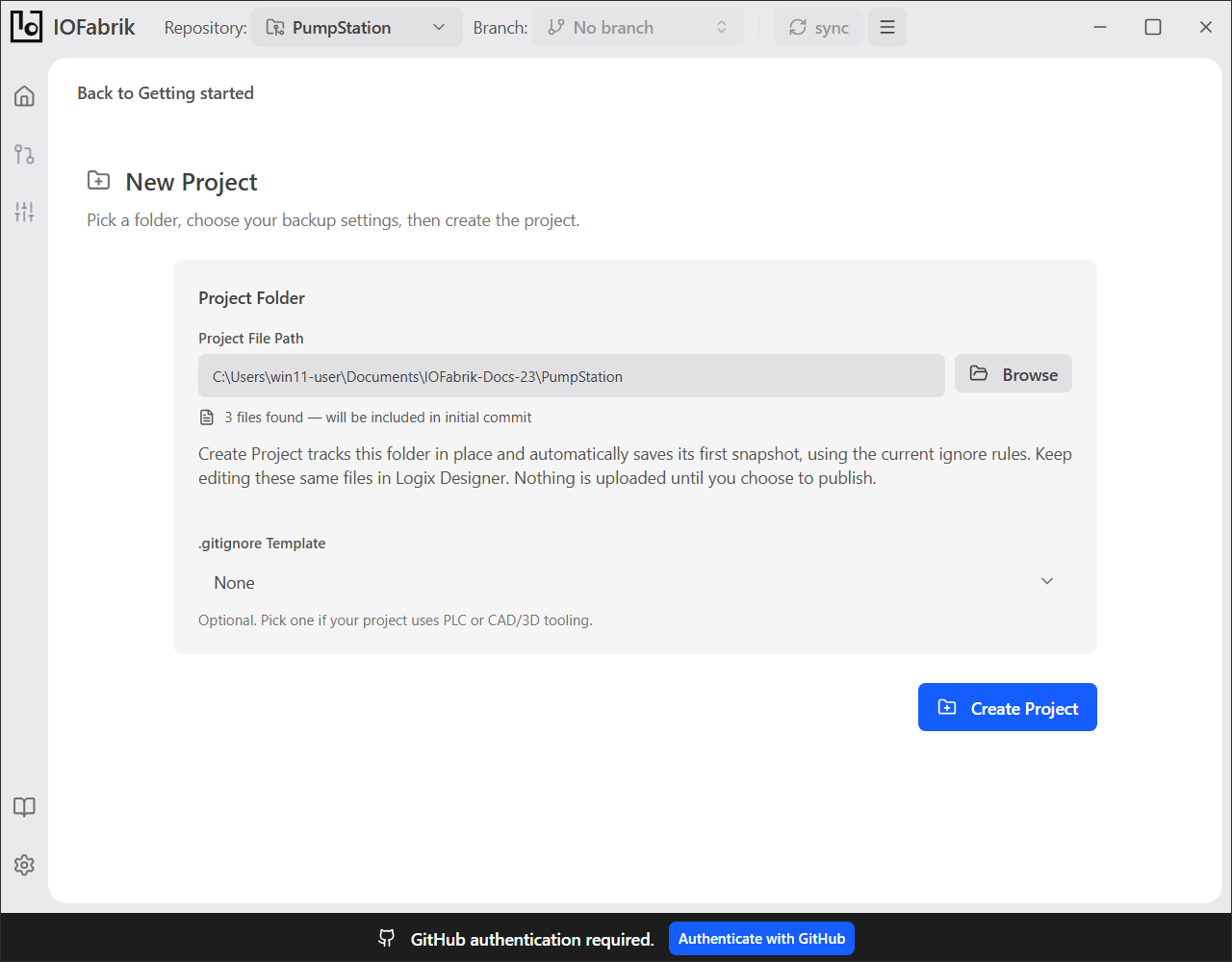
Create Project initializes Git in the chosen folder and saves the first snapshot. The first snapshot uses the folder’s ignore rules. The local setup form does not upload the project.
If the checklist already shows saved history, skip project creation. Click Continue to project.
If Git is initialized but the first save did not finish, the checklist shows Retry first snapshot. Click that button to complete the first save, then click Continue to project.
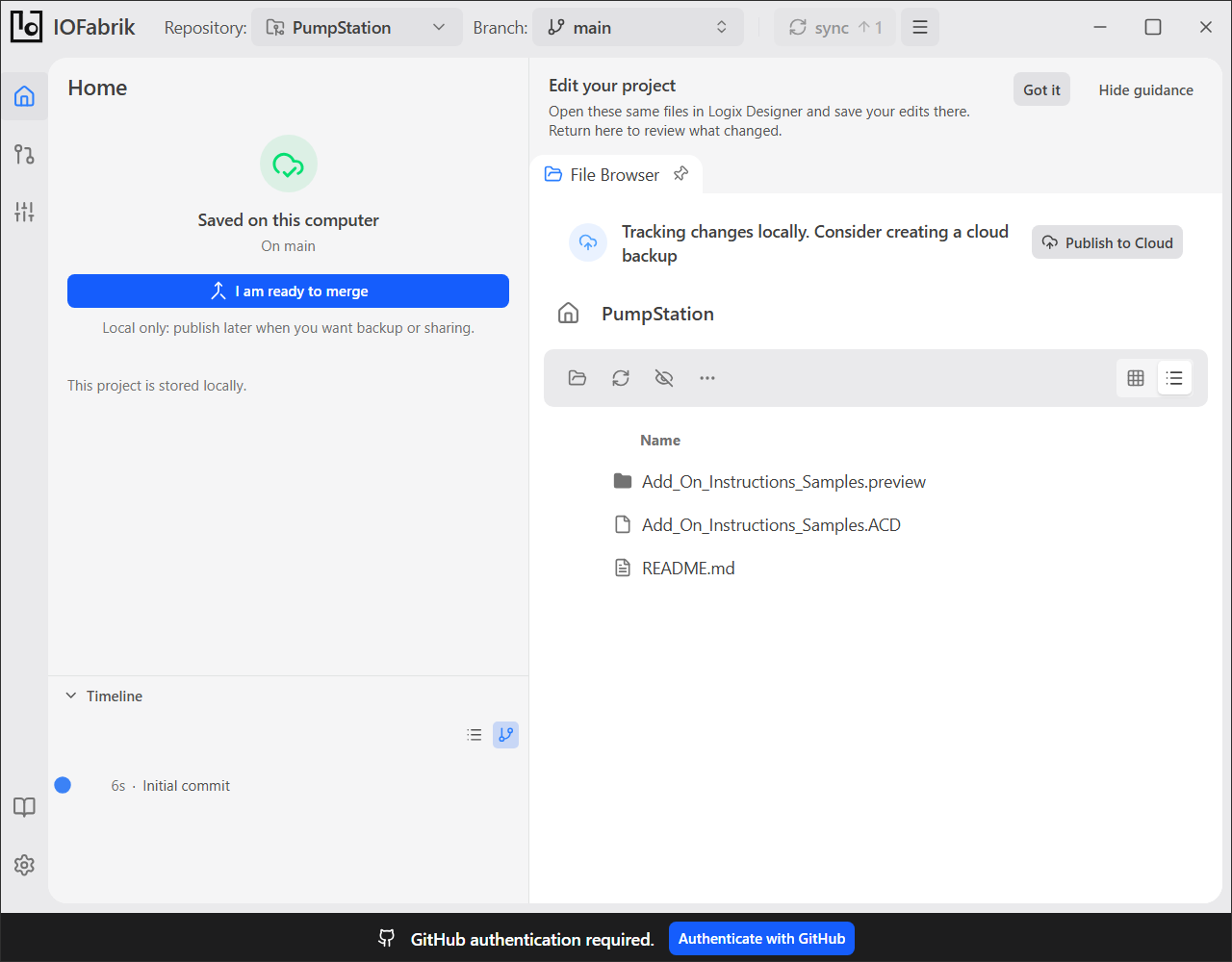
Before your next save, review the changed files and any ignore rules. See Save changes and Sync.
Open a project you already have
Section titled “Open a project you already have”- Click Home in the left activity bar.
- If another project is open, click the project name in the top bar, then click Open another project.
- If Switch Project? appears, click Open Another Project.
- Select Open Folder in the welcome sidebar.
- Click Browse… and select the project folder.
- Confirm the project name and current branch in the top bar.
To reopen a recent project, select Recent Projects instead of Open Folder, then choose the folder.
If the folder has no Git history, use the first-project checklist above. Do not create a new repository inside another repository. Select the existing repository’s root folder instead.
Clone a project from GitHub
Section titled “Clone a project from GitHub”Before you clone a private project, connect GitHub with an account that can access the repository.
- From the welcome sidebar, select Clone Project.
- Choose Browse GitHub and select the repository, or choose Paste URL and enter its URL.
- Under Clone Into, click Browse and select a parent folder.
- To download the full history, turn Shallow Clone off.
- Click Clone Project and wait for the project to open.
IOFabrik creates a folder with the repository name inside the selected parent folder. Leave Shallow Clone on if you only need the latest snapshot to start. Older history may be unavailable until you fetch it.
If cloning fails, follow Fix Sync or connection failures.
Next, confirm your Git author details and save your first change.