
Connect GitHub
Connect GitHub to clone private repositories, publish a local project, and share saved work. You can open projects and save locally without this connection.
If the footer says GitHub authentication required, you can still use Save Changes locally. Connect GitHub when you need remote access.
These steps use the documented Windows app baseline. GitHub is the available hosting integration in this build. IOFabrik Account sign-in is unavailable.
Connect your account
Section titled “Connect your account”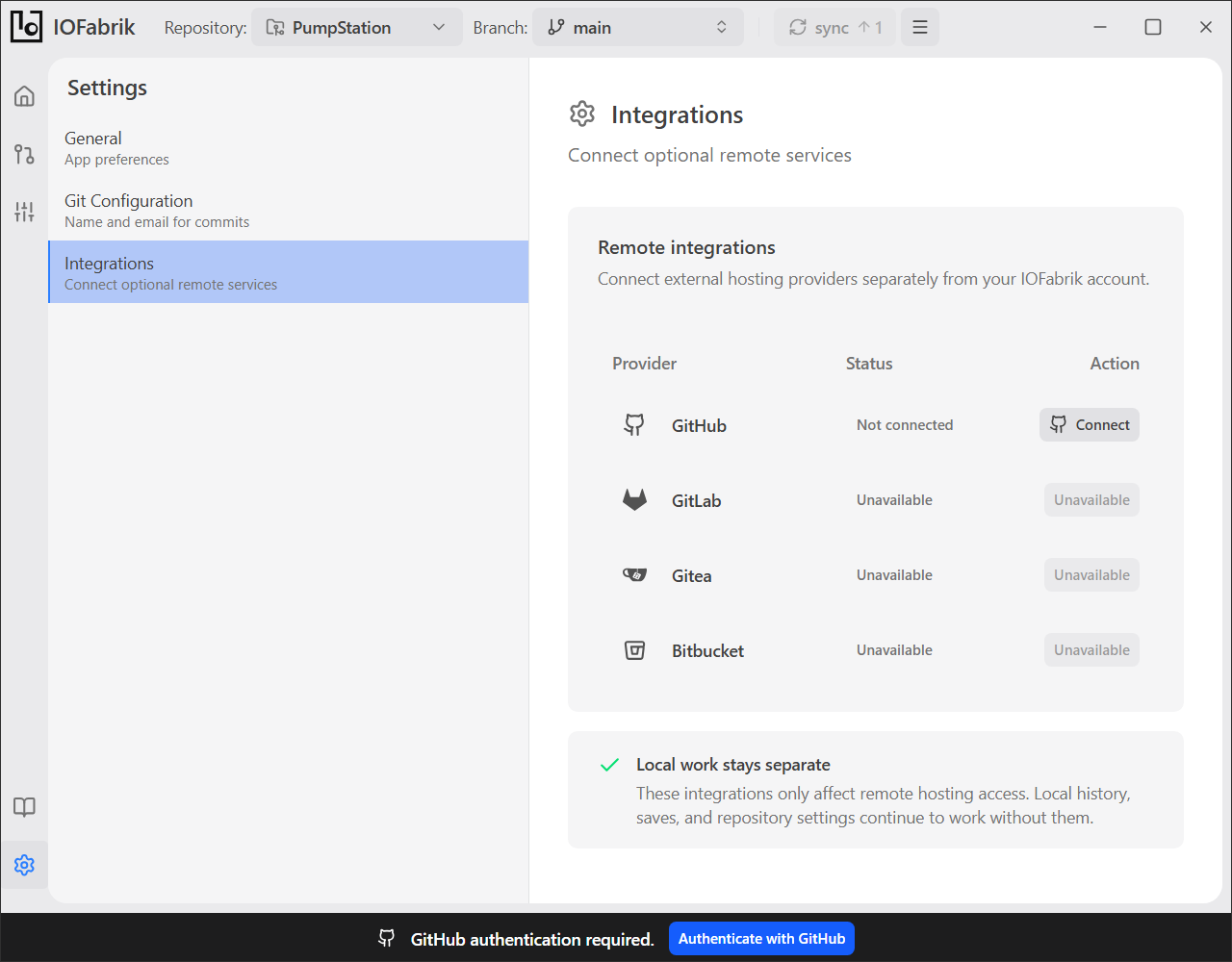
- Open Settings → Integrations.
- In the GitHub row, click Connect.
- Click Copy beside the verification code in the connection window.
- Click Open GitHub.
- In your browser, sign in to the GitHub account that has access to your team’s repository.
- Enter the verification code and complete GitHub’s authorization prompts.
- Return to IOFabrik and wait for Connected.
You can also click Connect GitHub in the Getting started checklist. Connecting an account does not upload your project.
If the row shows GitHub CLI required, click Check supporting tools first. If the tool check fails, follow Fix missing supporting tools.
If the verification code expires, close the connection window and click Connect again. If GitHub connects but a repository is missing, check that the browser used the intended account and that the account has repository access.
Publish a local project
Section titled “Publish a local project”Publish only files you intend to share. Review the project’s saved history and ignore rules before you create the remote repository.
- Open Getting started through Resources → User onboarding.
- Under Publish to GitHub (optional), click Publish project.
- In Publish to Cloud, review Repository Name, Owner, and Visibility.
- Keep Private selected unless you intend the project to be public.
- Click Publish to Cloud and wait for publication to finish.
The publish step becomes available after a local snapshot exists and GitHub is connected. If the project already has a remote, use Sync instead.
For later edits, save changes and Sync. To disconnect or change accounts, use GitHub integration settings.