
Recover a stuck operation
Use this guide when IOFabrik reports that a merge, rebase, cherry-pick, or another operation is already in progress.
Inspect the operation first
Section titled “Inspect the operation first”- Confirm the project in the Repository selector.
- Open Repository Settings → Troubleshooting.
- Wait for Repository Health Check to finish.
- Select Check Again if you need a fresh result.
- Read the reported operation and the available recovery actions.
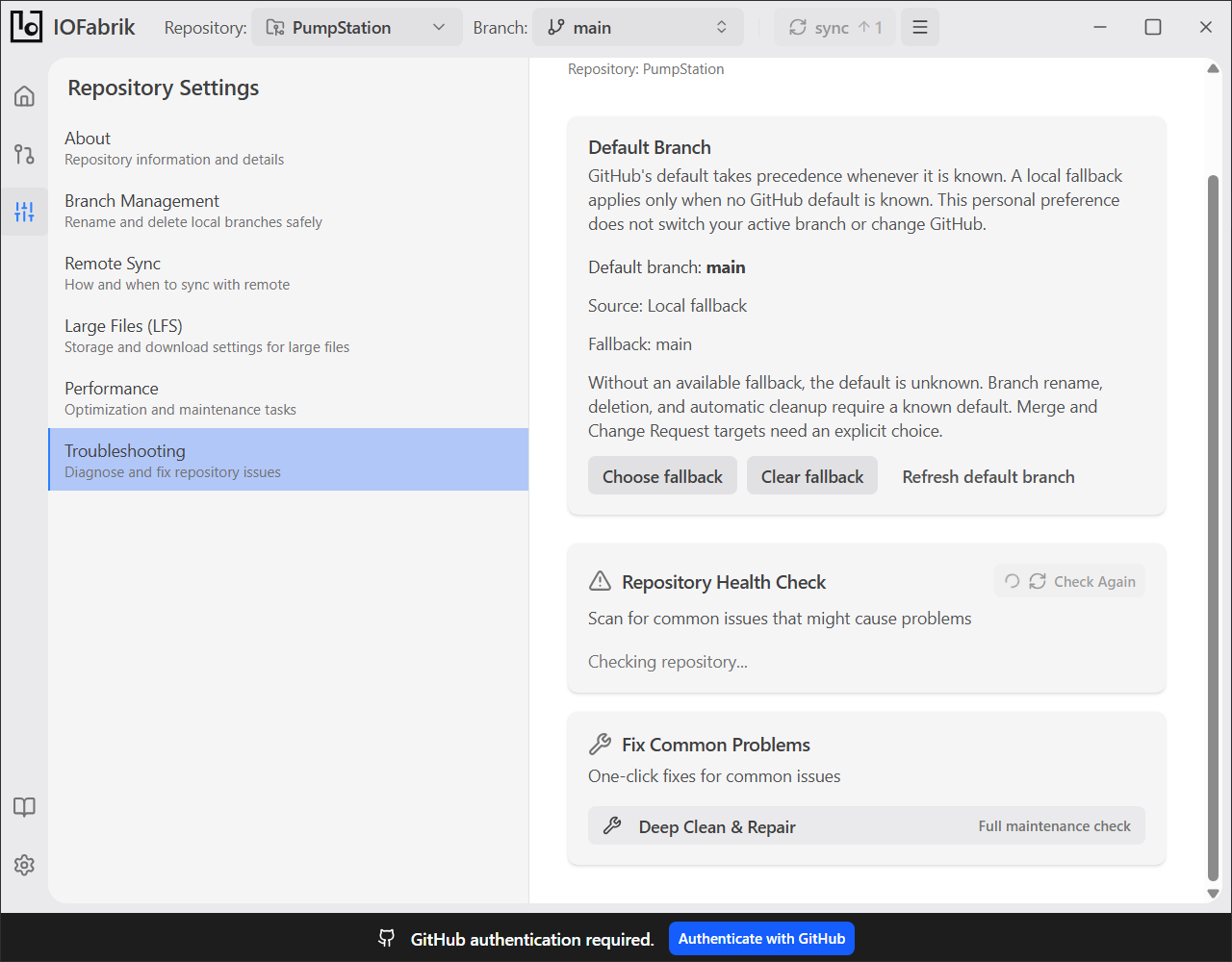
If Conflict Review offers Continue Sync or Finish merge, finish the remaining decisions there. See Resolve merge conflicts.
Cancel an operation only when you want to abandon its unfinished result. Cancellation can discard conflict decisions or changes made during that operation.
Back up the project before recovery
Section titled “Back up the project before recovery”- Wait for active save, sync, and preview work to finish.
- Save your engineering work in Studio 5000 or your editor.
- Close IOFabrik and other tools that can change this project.
- Copy the entire project folder, including its hidden
.gitfolder, to a separate location.
For a normal repository with its own .git directory, use this PowerShell block. Replace the example project path:
$ErrorActionPreference = 'Stop'$repo = 'C:\Projects\PumpStation'if (-not (Test-Path -LiteralPath (Join-Path $repo '.git') -PathType Container)) { throw 'This folder has no .git directory. Verify the project path and back up linked repository storage before recovery.'}$backupName = (Split-Path $repo -Leaf) + '-backup-' + (Get-Date -Format 'yyyyMMdd-HHmmss')$backup = Join-Path (Split-Path $repo -Parent) $backupNameCopy-Item -LiteralPath $repo -Destination $backup -Recurse -ForceGet-ChildItem -LiteralPath $backup -ForceExpect the backup to contain your project files and .git. Keep the backup outside the original project. If .git is a file, the project uses separate Git storage. Back up that storage before you attempt recovery.
Use the matching app recovery action
Section titled “Use the matching app recovery action”Reopen the original project in IOFabrik. Return to Repository Settings → Troubleshooting and select Check Again.
Use the action for the operation that the scan identifies:
- Cancel Stuck Merge abandons the unfinished merge.
- Cancel Stuck Rebase abandons the unfinished rebase.
- Cancel Stuck Cherry-Pick abandons the unfinished cherry-pick.
- Cancel Stuck Revert abandons the unfinished revert.
- End Bug Search (Bisect) ends the bisect session.
- Cancel Patch Application abandons an unfinished
git amoperation.
Wait for the completion message and the new health-check result. If cancellation fails, keep the backup and collect the error before trying another action.
Use a terminal fallback for a confirmed stuck merge
Section titled “Use a terminal fallback for a confirmed stuck merge”Use this fallback only after the backup, and only when the diagnosis identifies a merge. Close IOFabrik before running the command. The block adds the bundled Git and Git LFS directories to PATH for this PowerShell session:
$repo = 'C:\Projects\PumpStation'$tools = Join-Path $env:LOCALAPPDATA 'IOFabrik\tools\bin'$git = Join-Path $tools 'git\cmd\git.exe'$lfs = Join-Path $tools 'lfs\git-lfs.exe'$env:PATH = (Split-Path $git) + ';' + (Split-Path $lfs) + ';' + $env:PATH& $git -C $repo status& $git -C $repo merge --abortif ($LASTEXITCODE -ne 0) { throw 'Merge cancellation failed. Keep the backup and collect the error.' }& $git -C $repo statusExpect the last status to stop reporting an active merge. Earlier local changes can still appear. Do not replace a failed abort with reset --hard.
Check lock errors separately
Section titled “Check lock errors separately”For an “another git process” error, wait for active operations and close other Git clients. A lock file alone does not prove that its owner stopped.
After you confirm that no Git operation is running and have a backup, use Remove Stale Lock Files if the health check offers it. This action concerns Git locks. It does not repair SDK state.
Do not delete SDK locks, operation records, or recovery folders to clear a preview error. Follow Fix an ACD preview instead.
Use repository maintenance only after diagnosis
Section titled “Use repository maintenance only after diagnosis”Deep Clean & Repair runs object checks, garbage collection, pruning, commit-graph updates, and repacking. Back up the complete repository before using it. Maintenance can remove unreachable objects that you might need for recovery.
A completion notification does not prove that missing or corrupt objects were restored. Run Check Again and inspect any remaining errors.
Verify recovery
Section titled “Verify recovery”Return to Home and check your project files. Open Repository Settings → Troubleshooting and confirm that the operation warning has cleared. Verify the engineering project before saving or syncing the recovered result.
If the warning remains, collect debug logs. Include the operation name and the recovery action that failed.