
Generate an ACD preview
Generate a preview to inspect a Studio 5000 .ACD project inside IOFabrik. This procedure uses an offline project file and the documented Windows app baseline.
Start with an open project that tracks its files in Git.
Prepare the Windows computer
Section titled “Prepare the Windows computer”Before you generate a preview, confirm these prerequisites:
- Windows x64.
- A complete IOFabrik build with its preview helper files.
- The .NET 10 x64 runtime.
- Logix Designer SDK with a valid activation and support for the project’s Logix Designer version.
- The required Logix Designer version installed on the same computer.
The IOFabrik installer supplies the application tools. It does not install the Rockwell software or .NET runtime. Use your organization’s approved installers for those prerequisites.
An exported .L5X file can be previewed directly in IOFabrik. Reading an existing ACD preview does not require a new SDK export.
Generate the preview
Section titled “Generate the preview”- Save the ACD in Logix Designer and wait for the save to finish.
- Open the project folder in IOFabrik.
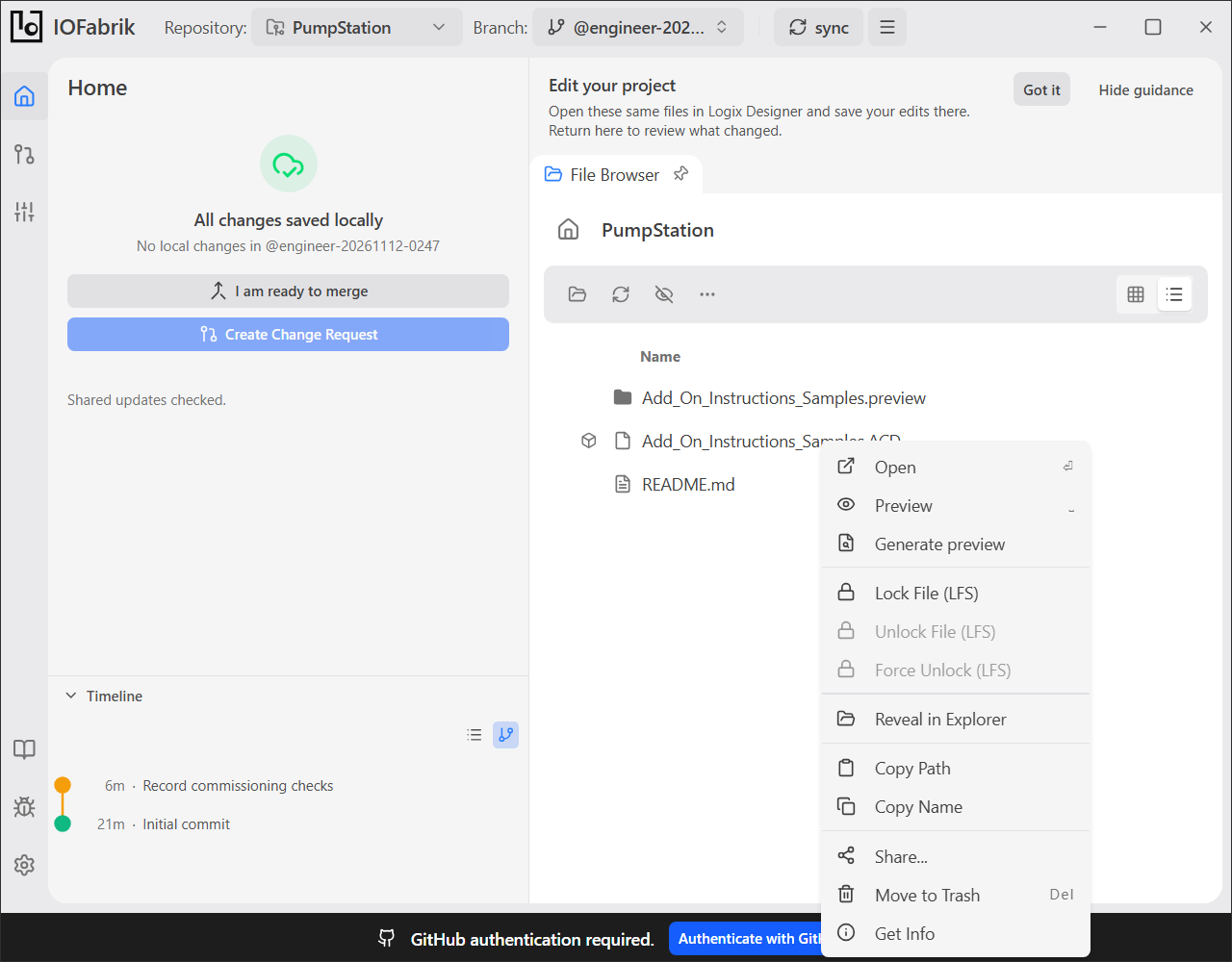
- In Home, right-click the ACD file.
- Click Generate preview.
- Wait for The preview is ready. before you start another preview.
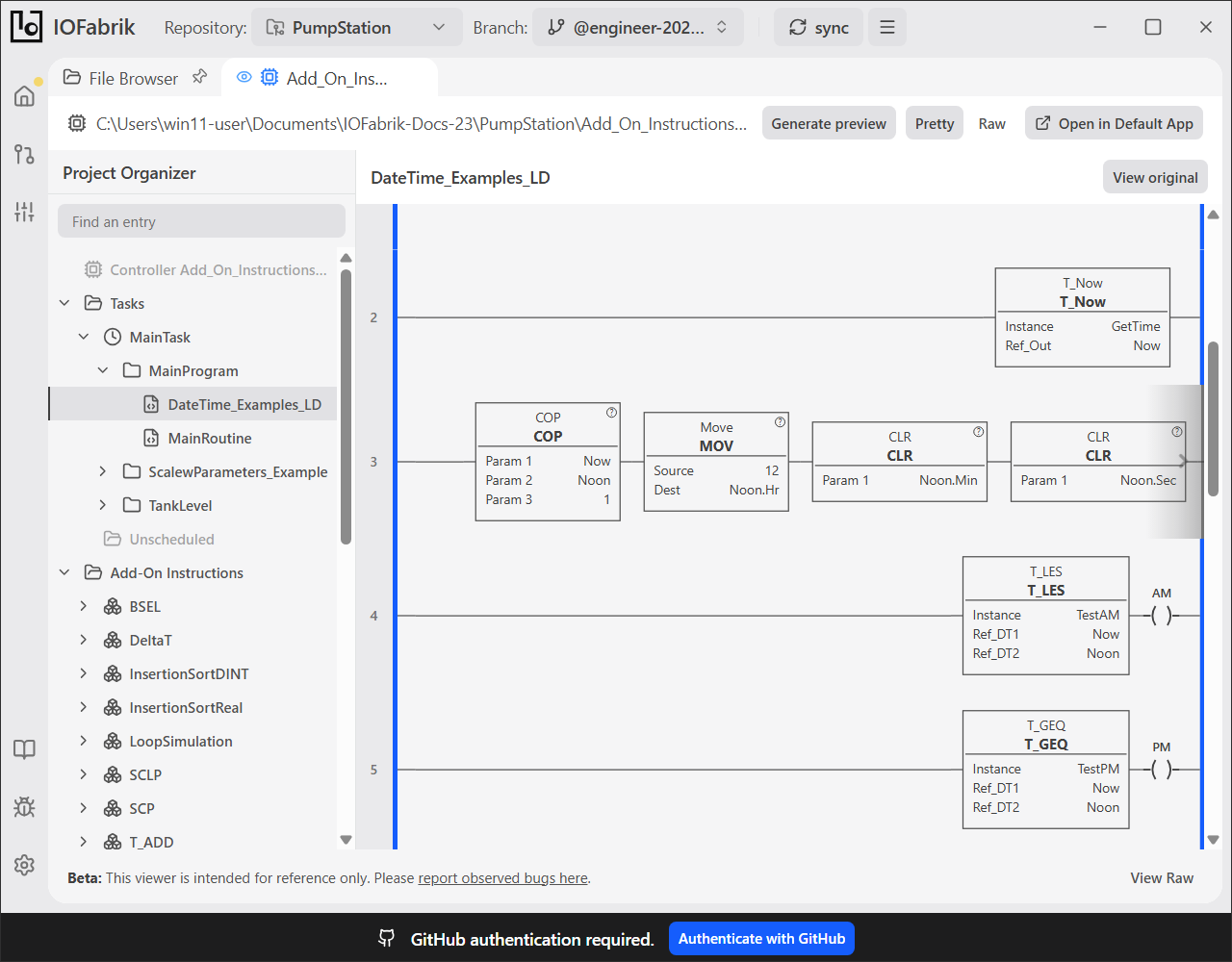
- Right-click the ACD and click Preview.
IOFabrik creates a matching .preview folder beside the ACD. Keep the ACD and its generated preview together when you save or share the project. Do not edit the generated preview files.
To preview an exported L5X instead, right-click the .L5X file and click Preview. Double-clicking a file opens its default Windows application.
To give the viewer more room, click Home again to collapse its sidebar. Click Home once more to show the sidebar.
After another ACD edit, generate a new preview for the saved file. A preview from an older ACD revision cannot represent the current file.
Recover a failed preview
Section titled “Recover a failed preview”If Cannot open ACD preview appears, read the reason in the panel.
- If no preview exists or the preview belongs to another ACD version, click Generate Preview.
- If the ACD changed while the app read it, wait for the editor to finish saving, then click Retry.
- If another preview is running, wait for that operation to finish.
- If the helper files are missing or changed, reinstall the complete application build.
- If the message names a missing .NET runtime, install .NET 10 x64, then generate the preview again.
- If the message names a missing Logix Designer version or SDK activation, correct that installation before you retry.
Retry reads the available preview again. Generate Preview runs a new conversion through the SDK.
If preview generation still fails, use ACD preview troubleshooting to inspect the SDK service and collect a diagnostic log.